

I approached PDF Reader - All PDF Scanner as the kind of tool I would keep on my phone for documents that usually get buried in a downloads folder. It is a free productivity app from Dev Globeg, built around opening and working with local PDF files rather than trying to become a full document-management platform. That focus is useful: when I need to read a form, check a manual, or make a quick adjustment to a document already stored on my device, I want the file on screen without a complicated setup.
My overall impression is positive, but practical rather than enthusiastic. This is a straightforward PDF reader and editor for everyday handling, and its appeal comes from keeping the task narrow. It has a 4.1 average from around 5.6 thousand ratings, with more than a million installs, so it has clearly found an audience beyond occasional testing. At the same time, I would not treat it as a replacement for a complete office suite, a cloud-based collaboration service, or a specialist scanning workflow. Its best role is as a handy local PDF utility that stays easy to approach.
How the current app feels in everyday use
The first thing I noticed is that the app makes sense for people who think in terms of files rather than accounts and workspaces. If a PDF is already on the phone, the natural workflow is to locate it, open it, read it, and decide what needs to happen next. That sounds basic, but it is exactly where many document apps become distracting with extra panels, cloud prompts, or unrelated tools.
I can imagine using it after receiving a school form in a messaging app, downloading a travel confirmation, or saving an instruction manual from a website. Instead of opening a browser every time, I would use this app as a dedicated place to inspect the document. The local-file emphasis also suits anyone who prefers keeping personal paperwork on the device instead of automatically moving it into an online service.
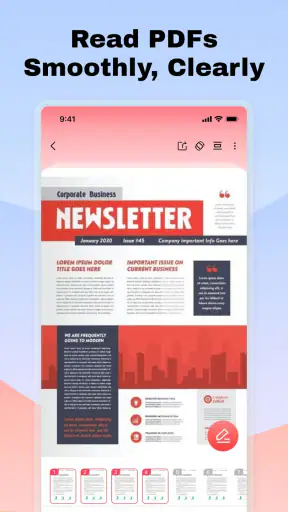
Reading comfort matters more than a long feature list in a PDF app. A document can look fine on a desktop and feel awkward on a phone if page movement, zooming, or returning to the right page becomes irritating. The useful test is whether the app gets out of the way while I am comparing a paragraph, checking a number, or moving through several pages. In that respect, the simple positioning works in its favor: I am opening a document to read it, not entering a complicated editing project.
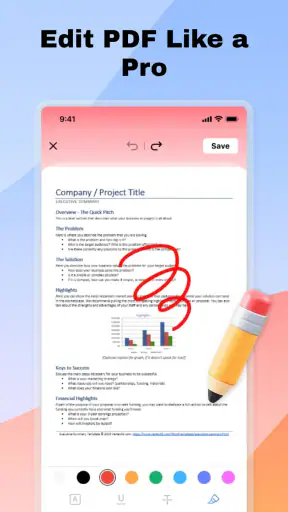
The editor side makes the app more useful than a viewer that only displays pages. A reader is enough for a manual, but less helpful when I need to make a small correction or prepare a file before sending it onward. I would still approach edits carefully, particularly with an important form or a document whose layout must remain exact. A mobile editor is convenient for quick work, but I would use a desktop tool when the job involves extensive rearranging or precision formatting.
One practical habit I recommend is to separate “reviewing” from “changing.” I first open the original and read it all the way through, then make a copy before editing if the file is important. That workflow is especially sensible with local documents because it keeps the untouched version available. It also prevents a rushed phone edit from becoming the only copy of a contract, application, or reference document.
Who benefits most from the local-file approach
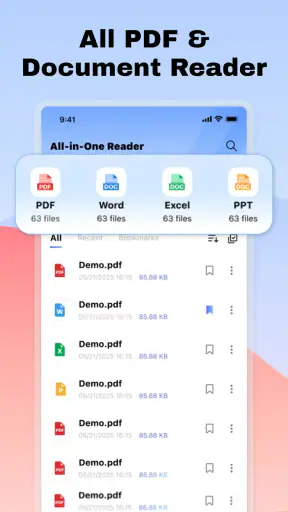
This app is a good match for students, renters, travelers, families, and small-business users who regularly receive PDFs but do not need a large document ecosystem. A student can check a worksheet or reading packet away from a computer. A renter can inspect a lease attachment before forwarding it. Someone managing household paperwork can keep manuals, receipts, and forms accessible without installing a separate viewer for each type of file.
I also see value for people using an older phone. The minimum requirement is Android 8.0, which keeps the app available to a broad range of devices. That does not guarantee identical performance on every handset, but it does make the app a more realistic option for users who are not carrying the newest hardware and simply need PDF handling to work.
The age rating is Everyone, which fits the app’s document-focused purpose. Families may still want to think about what files are stored on a shared device, but the rating itself makes the application approachable for general household use rather than a narrowly specialized professional audience.
A realistic workflow for a busy day
Here is the situation where I find this type of app most convincing. I receive a PDF appointment document while away from my laptop, open it locally, check the date and address, and use the editing tools for the small change I actually need. I then save the result separately and send it through the communication app I already use. The benefit is not that the process replaces a full office workflow; it is that I can finish a small document task without waiting until I am back at a desk.
Another useful routine is preparing a bundle of reference files before leaving home. I can download the PDFs I expect to need, open each one once, and confirm that the pages display correctly. That catches the common problem of discovering at the last minute that a file is incomplete or difficult to read. Because the app is centered on local files, it feels better suited to this “carry the documents with me” habit than a reader that assumes constant online access.
For repeated use, I would keep the file area tidy rather than allowing every download to remain mixed together. Clear filenames and separate folders do more to improve the experience than repeatedly searching through a crowded list. This is one of the less obvious trade-offs of a local reader: it gives me direct control, but I also have to take responsibility for organization.
What the current version suggests about its direction
The current version is 1.1.7, and the app was released on September 28, 2025. Those details place it in an early stage of its product life rather than presenting it as a long-established document suite. I read that as a reason to judge the present experience on its usefulness today while keeping expectations measured about how much the tool may change over time.
The version number suggests an app that has already moved beyond its first basic release, but it would be a mistake to turn that into a promise about specific future capabilities. What I can say from using it as intended is that the foundation is clear: local PDF access, reading, and editing are the center of the product. Any future improvement will matter most if it strengthens those everyday actions instead of adding a crowded collection of unrelated options.
For existing users, a newer version can be valuable even when the visible interface does not change dramatically. Small improvements in opening files, moving through pages, saving edits, or handling different documents can affect whether an app feels dependable. I pay attention to those details because PDF work is often time-sensitive: the reader is usually opened when I need an answer, not when I want to explore software.
At the same time, version numbers alone do not tell me how deeply the app has evolved. I would not assume that a later build automatically makes it suitable for advanced publishing, document collaboration, or business archiving. The sensible approach is to install the current version, test it with a few ordinary PDFs, and decide whether it fits the files I actually handle.
How it compares with familiar alternatives
The usual alternative is the PDF viewer already included with a phone, a browser, or a file manager. Those options can be perfectly adequate when I only need to open a document once. This app becomes more interesting when I want a dedicated place for PDFs and some editing ability instead of switching between unrelated tools.
Cloud-centered document services are stronger when I need synchronized files, shared comments, team access, or a document history across several devices. I would choose one of those for collaborative work. The trade-off is that a local-focused reader feels less demanding for a single person handling files on one phone. It avoids making a simple reading task feel like a project-management task.
Full office suites are better for creating and revising complex documents from the ground up. They generally make more sense when the PDF is only one step in a larger workflow involving text documents, spreadsheets, presentations, or formal exports. I would choose this app instead when the PDF already exists and my job is mainly to inspect it or make a modest adjustment.
Dedicated scanning applications are the better choice when the starting point is a paper document. Their strength is capturing pages with the camera, correcting perspective, improving readability, and producing a scan. This app’s strongest use is what happens after a PDF is already available locally. Confusing those two roles could lead to disappointment, so I would not install it expecting a complete paper-to-PDF scanning studio just because its name includes “Scanner.”
Small techniques that make it more useful
My first tip is to create a clean working copy before editing anything important. I would rename the copy with a clear purpose, such as adding “review” or “signed” after the original filename, then keep the untouched document nearby. This is more reliable than trusting memory about which version contains the original text, especially when several files arrive with similar names.
My second tip is to use the app as a checkpoint before sharing. I open the final file, move through every page, and look for accidental changes near the edges, missing content, or an edit that did not land where I expected. A file can appear correct while editing and still deserve one complete read-through before it leaves the phone.
My third tip is to match the tool to the size of the job. For one correction, a quick local edit is convenient. For a document that needs extensive restructuring, repeated revisions, or precise layout control, I would move to a larger screen and a more specialized editor. Knowing when to stop using the phone is part of getting good results from this app, not a criticism of it.
A fourth useful habit is to test an unfamiliar PDF before an urgent appointment or trip. Some documents are created with unusual fonts, forms, or layouts. Opening them early gives me time to find a different tool if the file does not behave as expected. That is particularly important when the document is a ticket, identity form, or time-sensitive instruction sheet.
Where the experience still has limits
The biggest limitation is the narrowness that also makes the app approachable. Local-file handling is convenient, but it does not replace a broader system for organizing documents across devices or working with other people. If my files live on a laptop, tablet, and phone and need to stay synchronized, I would favor a service designed around that requirement.
Editing on a phone also has an obvious ceiling. Touch controls are fine for small changes, but they become tiring when I need to manipulate many elements or compare several pages at once. I would not choose this as my main tool for long contracts, complicated reports, or professional publishing work. The app is more convincing as a quick-response utility than as the center of a serious document production workflow.
I would also be cautious about assuming that every PDF behaves the same way. Simple text documents and ordinary manuals are a comfortable target. Files with complex interactive elements, unusual embedded content, or strict layout requirements deserve a test first. This is not a reason to avoid the app; it is a reminder that “PDF” describes many different kinds of documents.
People who only read a PDF once may find their phone’s existing viewer sufficient. In that case, installing another app adds little unless the editing tools or dedicated file access solve a real problem. I would skip this one if I wanted advanced annotations, team review, deep cloud integration, or a scanner-first experience. Choosing a simpler reader for those needs would be more frustrating than helpful.
What I would watch as the app develops
Because the product is still relatively new, I would watch how future updates improve the basic workflow rather than judging progress by the number of added buttons. Better handling of difficult files, dependable saving, clear editing feedback, and a smoother way to move between local documents would all have a direct effect on trust.
I would also look for signs that the app can grow without losing its straightforward character. More capability is welcome when it remains discoverable, but a PDF utility can quickly become harder to use if every ordinary task is surrounded by menus and promotional distractions. The strongest path for this app is to make common local document work more dependable while preserving the quick start that attracted me in the first place.
For now, I see PDF Reader - All PDF Scanner as a sensible free choice for Android users who want a dedicated way to read and make modest changes to local PDFs. Dev Globeg has kept the idea easy to understand, and the current 1.1.7 release gives the app a usable foundation. I would recommend it to a friend who regularly receives documents on a phone and wants more control than a basic viewer provides.
My recommendation comes with a clear boundary: use it for personal, everyday PDF handling, not as a substitute for a full office suite, cloud archive, or professional scanning system. If that boundary matches your needs, the app is practical and approachable. If your work depends on collaboration, complex formatting, or a large multi-device library, another category of tool will serve you better. For a free productivity app rated Everyone, that focused role is enough to make it worth trying.


